
You downloaded a game or a large app from a third-party source, tapped the file, and your phone responded with a shrug. The file has an .xapk extension, and Android’s default installer does not recognize it. That is because an XAPK file is not a single installable package. It is a container that holds multiple pieces an app needs to run.
This guide explains what XAPK files are, why they exist, and how to install them safely on any Android device.
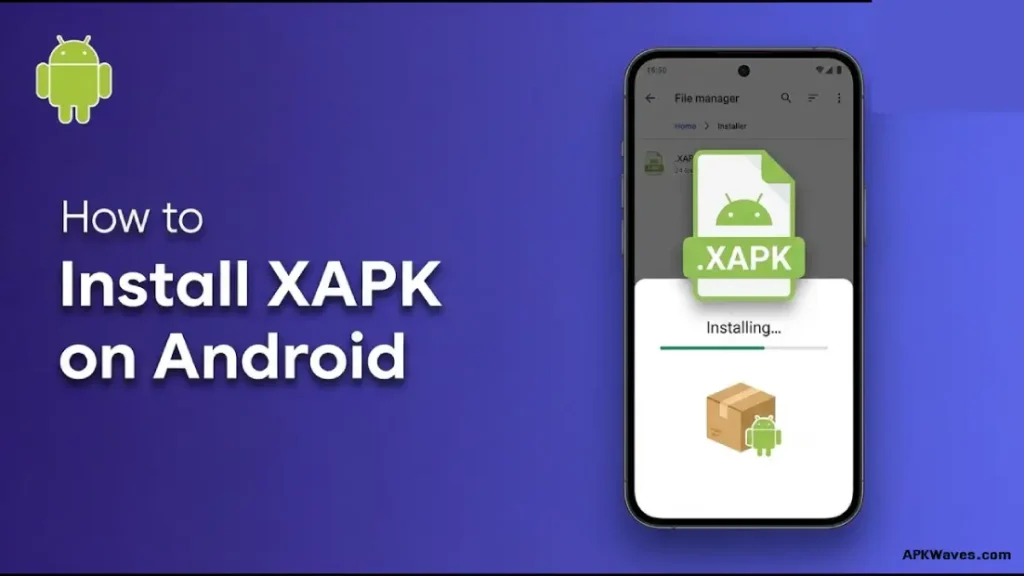
What Is an XAPK File?
An XAPK file is a compressed archive that bundles an Android application package (APK) with additional data the app requires. At minimum, it contains:
- A base APK file — the actual app installer
- OBB expansion files — large assets such as textures, audio, and video
- A manifest.json — metadata that some installer apps use to identify the package
In some cases, an XAPK may also include split APKs, cache files, or app icons. The format is essentially a ZIP archive with a custom extension. If you rename .xapk to .zip, any archive tool can open it.
Android’s built-in package installer does not handle XAPK files natively. That is the core difference between an APK and an XAPK: an APK installs directly, while an XAPK must be unpacked and its contents placed in the correct locations before the app will work.
Why XAPK Files Exist
Google Play Store enforces a size limit on the base APK. Historically this was 100 MB; it is now 150 MB. For many modern games, that is not enough. A single high-resolution texture pack or cutscene video can exceed the limit before the app code is even counted.
Developers who distribute outside the Play Store solve this by bundling the APK and its OBB data into one downloadable file. The XAPK format keeps everything together so users do not have to download the APK and the OBB separately. It also compresses the bundle, which reduces download size.
You will most commonly encounter XAPK files on third-party app stores, developer forums, and backup archives. The format is not official; it was created by third-party distributors and is not recognized by Google.
XAPK vs. APK vs. AAB vs. APKS
| Format | What It Is | Installable Directly? | Where You See It |
|---|---|---|---|
| APK | Standard Android app package | Yes | Play Store, sideloading |
| XAPK | APK + OBB data in one archive | No | Third-party stores (e.g., APKPure) |
| AAB | Android App Bundle (publishing format) | No | Play Store backend only |
| APKS | Split APK bundle from bundletool | No | APKMirror, developer tools |
An APK is the only format Android installs natively. An AAB is what developers upload to Google; the Play Store converts it into APKs for your device. An APKS is a bundle of split APKs for different device configurations. An XAPK is a third-party workaround for bundling APKs with large data files.
Prerequisites Before Installing
Before you attempt to install an XAPK file, confirm the following:
1. Enable installation from unknown sources
- On Android 8 and above: Go to Settings > Apps > Special app access > Install unknown apps, then select the app you will use to install (such as your file manager or XAPK installer) and toggle it on. This is a per-app permission.
- On Android 7 and below: Go to Settings > Security and enable Unknown sources.
2. Use a reliable file manager
If you choose the manual method, you need a file manager that can handle ZIP extraction and copy files to system folders. Stock file managers vary by manufacturer. Solid Explorer, FX File Explorer, or even Files by Google may work, though Android 11 and later restrict access to /Android/obb and /Android/data for many third-party apps.
3. Verify the source
Only download XAPK files from sources you trust. Because the format is not distributed through Google Play, there is no automated malware scanning at the point of download. Check the publisher’s reputation, read user feedback, and compare file hashes if the developer provides them.
Method 1: Using an XAPK Installer App (Recommended)
This is the simplest and safest method. A dedicated installer app extracts the archive, installs the APK, and moves the OBB files to the correct folder automatically.
Step 1: Download an installer
Install a reputable XAPK installer from the Play Store. SAI (Split APKs Installer) is an open-source option that handles XAPK files. Other options include APKPure’s own app, which can manage XAPK files downloaded through its platform.
Step 2: Grant permissions
Open the installer. It will request permission to access your storage and to install unknown apps. Grant both.
Step 3: Select the XAPK file
The installer will scan your device for XAPK files, or you can browse to the file manually. Tap the file you want to install.
Step 4: Install
The app will extract the contents, install the APK, and place the OBB data in /Android/obb/[package.name]/. When it finishes, you can launch the app normally.
This method avoids the folder-permission headaches that manual extraction creates on Android 11 and later.
Method 2: Manual Extraction (No Extra Apps)
If you prefer not to install another app, you can do the work yourself. This requires more steps and is more error-prone, especially on newer Android versions.
Step 1: Rename the file
Locate the XAPK file in your file manager. Rename the extension from .xapk to .zip. For example, game.xapk becomes game.zip.
Step 2: Extract the archive
Extract the ZIP file to a folder. Inside, you will typically find:
- An .apk file (the app)
- An Android/obb/ folder containing one or more .obb files inside a subfolder named with the app’s package name (for example, com.developer.game)
Step 3: Move the OBB files
Copy the entire subfolder from Android/obb/ inside the extracted archive to your device’s Internal Storage > Android > obb/ directory.
On Android 10 and below, most file managers can write to this folder directly.
On Android 11 and above, Google restricts access to /Android/obb and /Android/data for third-party file managers. You may need to:
- Use the stock file manager that came with your phone, as some manufacturers retain write access.
- Use Files by Google, which can sometimes bypass these restrictions.
- Connect your phone to a computer and use Windows File Explorer or Mac Finder to drag the OBB folder into place.
If the OBB files are not placed in the exact folder matching the app’s package name, the app will either crash on launch or prompt you to download data again.
Step 4: Install the APK
Return to the extracted folder and tap the APK file. Confirm the installation. Once it completes, open the app. If the OBB files are in the correct location, the app will run with all its data already present.
Conclusion
An XAPK file is simply a ZIP archive that wraps an APK with its OBB data. On most Android devices, the easiest and most reliable way to install it is through a dedicated XAPK installer app. If you choose the manual route, pay close attention to the OBB folder path, especially on Android 11 and later. Always verify your source before sideloading, and when possible, stick to the Play Store for the simplest updates and the strongest security.
Troubleshooting Common Problems
“App not installed” or parse error
- Uninstall any existing version of the app first. A signature conflict between the Play Store version and the sideloaded version will block installation.
- Check that the APK inside the XAPK matches your device’s architecture (ARM64 vs. ARMv7) and Android version.
- Ensure you have enough free storage. The installation needs space for both the APK and the extracted OBB data.
App crashes immediately after opening
- The OBB files are likely missing or in the wrong folder. Verify the path is Internal Storage/Android/obb/[package.name]/ and that the folder name matches the app’s package name exactly.
- The OBB file may be incomplete or corrupted. Re-download the XAPK and try again.
Cannot copy files to /Android/obb on Android 11+
- This is the most common manual-installation blocker. Use an XAPK installer app instead, which handles this through the proper storage APIs.
- Alternatively, use ADB from a computer: adb push [obb folder] /sdcard/Android/obb/
Play Protect warning
- Sideloaded apps often trigger Google Play Protect. If you trust the source, tap Install anyway. If you are uncertain, do not proceed.
FAQ
Can I install an XAPK file without any extra apps?
Yes, but it requires manual work. You must rename the file to .zip, extract it, move the OBB files to Android/obb/, and then install the APK. On Android 11 and above, moving files to the OBB folder is difficult without a computer or a specialized installer, so an app is usually easier.
Is XAPK the same as APKS?
No. XAPK is an unofficial format that bundles an APK with OBB data. APKS is a bundle of split APKs generated by Google’s bundletool. They serve different purposes and require different installer tools.
Do I need to root my phone to install XAPK files?
No. Root access is not required. Both installer apps and manual extraction work on unrooted devices.
Will an app installed from an XAPK update automatically through the Play Store?
Only if the APK inside the XAPK has the same package name and digital signature as the Play Store version. If the signatures differ, the Play Store will treat it as a different app and will not update it. You would need to update manually or through the same source where you downloaded the XAPK.
Why does my file manager say “access denied” when I try to copy OBB files?
Starting with Android 11, Google restricted third-party apps from writing to /Android/data and /Android/obb for privacy reasons. Use the stock file manager, Files by Google, an XAPK installer app, or a computer with ADB to work around this.